How to Print Zebra Labels from a Browser
ZPLCraftUpdated August 17, 2026
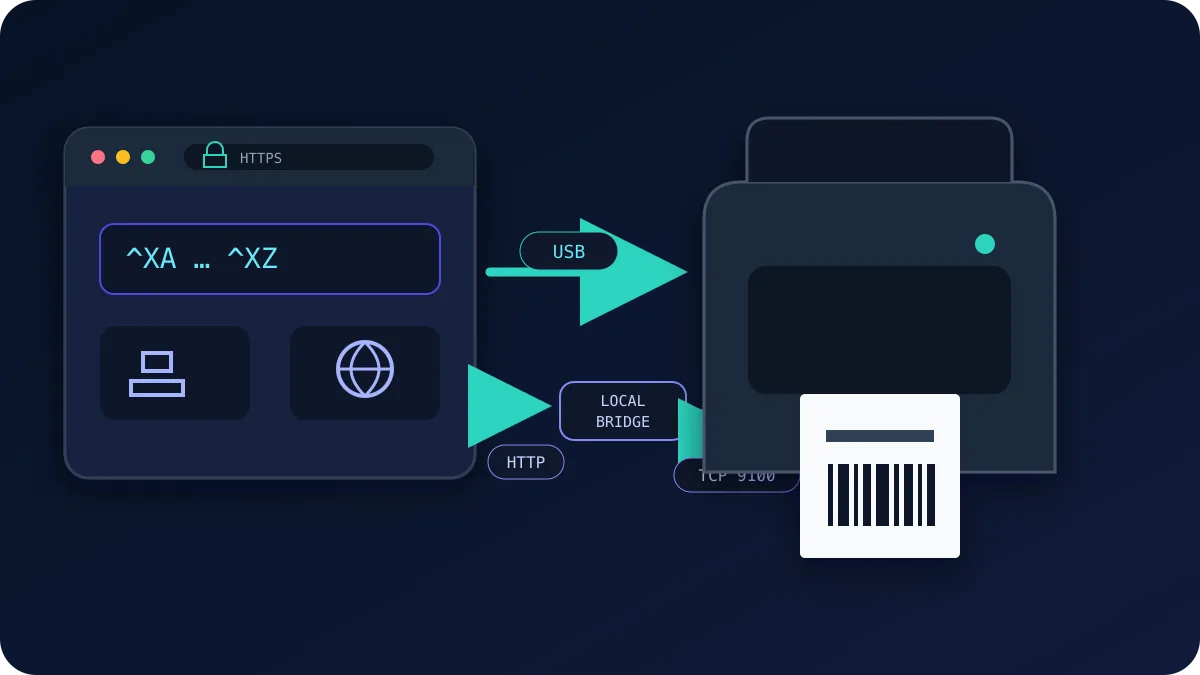
A ZPL printer needs a compatible command stream, but how the browser delivers it depends on the browser, operating system, driver and printer interface. A label is a small block of ZPL text, and anything that can deliver that text to the printer can print. That includes the browser: with the WebUSB API, Chrome and Edge can stream raw ZPL when WebUSB is available and the operating system has not claimed a compatible bulk interface. Windows commonly assigns its printer driver first; Zebra Browser Print or the system dialog is then usually the appropriate path. Other platforms and printer models vary.
The three ways to get ZPL into a Zebra printer
- WebUSB (browser → USB). After explicit permission, a supported Chromium browser can write ZPL to a compatible, claimable USB bulk endpoint. This can suit a nearby printer when the browser, operating system and printer expose that path; it requires an HTTPS page.
- Network (TCP port 9100). Some network-enabled printer models document raw ZPL on TCP port 9100. Browsers cannot open raw TCP sockets, so this path needs a vetted local relay or connector, or an HTTP method documented for the exact printer model.
- OS driver (Windows/CUPS). An installed Windows or CUPS driver lets the system print dialog send a rendered page. This can be the simplest managed-workstation path, but output depends on driver scaling, media and printer settings; verify barcode dimensions and physical scans for the target workflow.
Printing over WebUSB, step by step
- Use Chrome or Edge. WebUSB is supported in Chromium-based browsers; Safari and Firefox have not implemented it.
- Connect the printer over USB and turn it on. Load media and use the model’s documented status indicators to confirm that the printer is ready and not paused.
- Open the web app and trigger a print. In ZPLCraft, design your label on the canvas and click Print — the browser shows a device-picker dialog listing USB devices.
- Select your printer and grant access. The browser may remember this permission until it is revoked or cleared by browser or operating-system policy; be prepared to select the device again.
- Print. If the interface claim succeeds, the app writes the ZPL bytes to the selected endpoint. Confirm the resulting label on the target printer before production use.
Compatibility and recommendation
The manufacturer documents this model and configuration. ZPLCraft has not physically tested or certified it.
| Printer model / compatibility profile | Language / emulation | DPI | Manufacturer documentation |
|---|---|---|---|
| Zebra ZD421 | ZPL / EPL | 203 / 300 | Manufacturer documentation |
| Zebra ZT411 | ZPL / EPL | 203 / 300 / 600 | Manufacturer documentation |
| Zebra ZQ521 | ZPL / CPCL | 203 | Manufacturer documentation |
Troubleshooting
The printer doesn’t appear in the device picker
- Swap the USB cable and port — charging-only cables are a surprisingly common culprit.
- Windows: if a printer driver or setup utility has claimed the interface, WebUSB may not be able to access it. Use Zebra Browser Print or the system dialog, or follow the printer manufacturer’s and your administrator’s instructions before changing a production driver or interface.
- Linux: grant your user permission to the USB device with a udev rule for vendor ID
0a5f(Zebra), then replug the printer.
The label prints, but it’s blank or faint
- Blank labels usually mean the wrong media mode: direct-thermal stock with the printer set to thermal-transfer (or a missing ribbon). Check
^MT/media settings or run a calibration. - Faint print: increase darkness (
^MDor the driver/front-panel setting) or slow the print speed (^PR).
The layout is shifted or clipped
- Make sure the ZPL targets your printer’s DPI — coordinates written for 203 dpi land in the wrong place on a 300 dpi printhead. ZPLCraft scales the generated code to the printer you choose.
- Run media calibration (
~JC, or hold the feed button per your model’s manual) so the printer finds the label gap and starts each label at the top.
Why browser printing instead of drivers?
Where the capability is available, a browser-managed path can reduce per-workstation setup and keep supported barcode elements as ZPL commands. It is not universal: browser support, operating-system drivers, permissions and printer interfaces vary, and barcode output still needs physical verification.
ZPLCraft supports this workflow: design visually, inspect the screen preview, then use WebUSB when the browser, operating system and printer expose a compatible path, or export the ZPL for your existing systems. A screen preview does not replace testing with the target printer, media and scanner. Designing in the editor is free and every account gets a monthly print allowance at no cost; unlimited printing and file exports are part of Pro. If you’re writing ZPL by hand instead, keep the command reference nearby.