Shipping Label Designer & Reusable Templates
ZPLCraftUpdated August 17, 2026
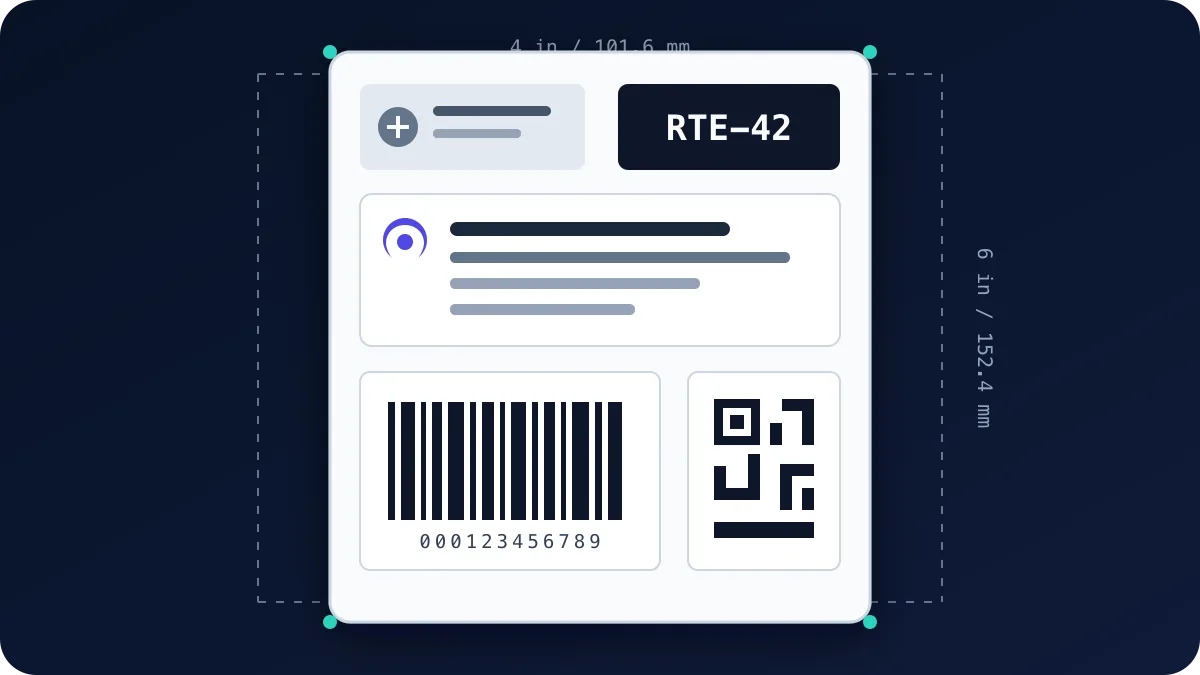
This guide uses a 4 × 6 inch (100 × 150 mm) shipping-label layout with an address block and a tracking barcode. It shows how to design the label in ZPLCraft and turn it into a reusable template for new data.
Designing a shipping label
A 4 × 6 inch label is a common shipping format, but carrier requirements vary. In ZPLCraft you build it visually on a true-to-size canvas and generate matching ZPL for the selected printer DPI.
- Set the label size. Create a new label at 4 × 6 inches (or 100 × 150 mm) and pick your printer resolution — 203 or 300 dpi — so the layout prints at the right physical size.
- Add the address blocks. Drop in text fields for the sender and recipient. Keep the recipient block large and high-contrast so it stays readable after thermal printing.
- Add a tracking barcode. Place a Code 128 barcode for the tracking number, or a QR code if your carrier specifies one. Confirm the carrier’s symbology and data rules, then verify the printed symbol with the target printer and scanner.
- Preview and print. Check the screen preview, then use WebUSB only when the browser, operating system and printer expose a compatible interface, or export the ZPL to send from your own system. Verify the physical label before production use.
Reusable label templates
Once a layout is right, you rarely want to rebuild it. ZPLCraft doubles as a label template designer: save the design and reuse it as a template — open it again, change only the data, whether the recipient address, the tracking number, a price or SKU, and reprint. Dynamic data tokens can even swap those values in at print time. The positions, fonts and barcode settings stay exactly where you put them.
That keeps a batch of labels consistent and removes the most error-prone step of editing raw ZPL by hand. The same approach works for product labels, asset tags, shelf labels and any layout you print more than once.
Frequently asked questions
Can I design a 4 × 6 shipping label?
Yes. Set the canvas to 4 × 6 inches (100 × 150 mm) at your printer’s DPI, add the address blocks and a Code 128 or QR barcode, and ZPLCraft generates the ZPL scaled for that label size.
Can I reuse a label template?
Yes. Save a finished design and open it again whenever you need it; change only the data and reprint, so every label in a batch keeps the same layout.