How to Open, View and Print a ZPL File
ZPLCraftUpdated September 30, 2026
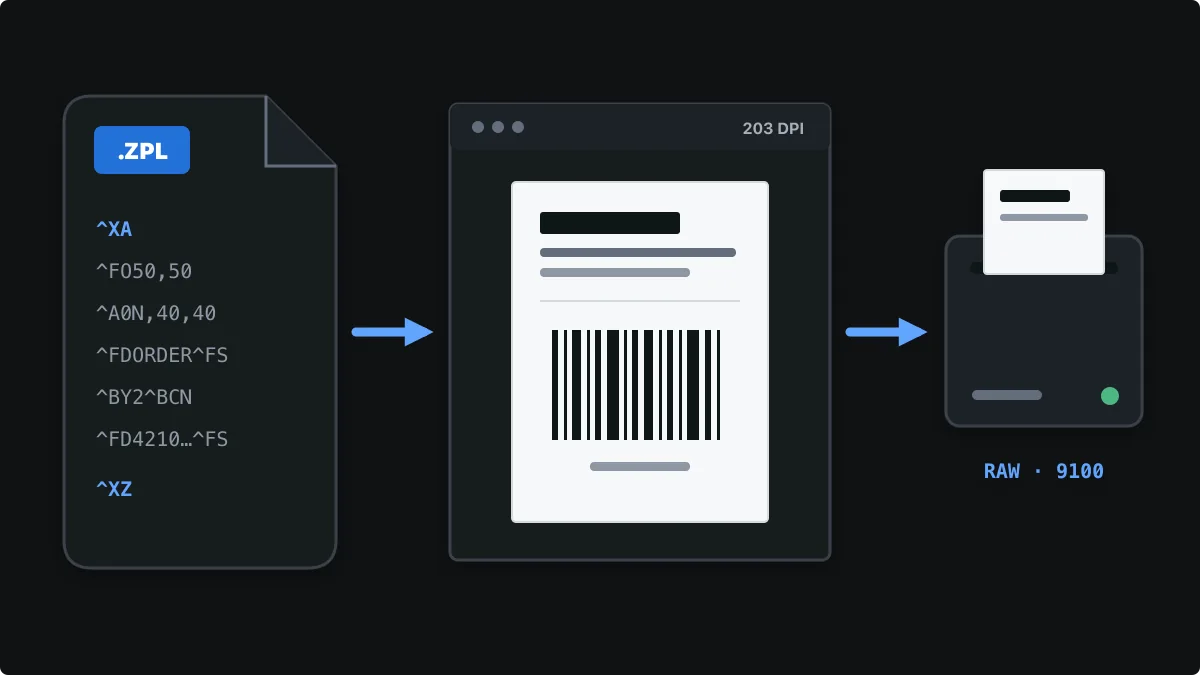
A ZPL file is a plain-text file full of Zebra Programming Language commands. Shipping platforms, carrier APIs, ERPs and warehouse systems produce them so a thermal printer can print the label directly, which is why opening one in a normal program usually shows a wall of codes instead of a label.
This guide shows how to recognise a ZPL file, view it as a label without a printer, and send it to a Zebra printer from Windows, macOS, Linux or a browser without it being printed as text.
How to recognise a ZPL file
ZPL files commonly use the .zpl extension, but carriers and label software also save them as .prn or .txt, and some systems use .lbl. Open the file in any text editor: if it starts with ^XA, ends with ^XZ and contains commands such as ^FO and ^FD, it is ZPL.
^XA
^FO50,50^A0N,40,40^FDORDER 10592^FS
^FO50,110^BY2^BCN,90,Y,N,N^FD4210159200083^FS
^XZ
Long blocks of hexadecimal or base64 text after ^GF or ~DG are embedded graphics such as logos, not corruption. One file can hold many labels: each ^XA … ^XZ block is a separate label. Design files from ZebraDesigner (.nlbl) or BarTender (.btw) are not ZPL; those programs must print or export them first.
View a ZPL file online without a printer
The fastest way to see what a ZPL file will print is to render it:
- Open the free ZPL viewer.
- Choose Open ZPL file and select the .zpl, .prn or .txt file, or paste its contents into the code editor.
- Set the resolution to match the target printer: 203, 300 or 600 dpi. The wrong resolution makes the label look too large or too small.
- Step through the labels if the file contains more than one, then download a PNG or switch to the visual designer to edit the layout.
The file is rendered inside your browser and is not uploaded, which matters for shipping labels that contain customer addresses.
How to print a ZPL file on a Zebra printer
A ZPL file must reach the printer raw, byte for byte. If you open it in Notepad or TextEdit and press Print, the operating system renders the text on a page and the printer outputs the commands themselves as text. Use one of these raw methods instead.
Windows
Share the printer in Printer properties → Sharing (for example as ZebraShare), then copy the file to it in binary mode from Command Prompt. Zebra Setup Utilities can also send a file directly via Open Communication With Printer.
copy /b label.zpl \\localhost\ZebraSharemacOS and Linux
With the printer added in CUPS, submit the file with the raw option so no driver filter touches it:
lpstat -p
lp -d Zebra_ZD420 -o raw label.zpl
Network printers
Most networked Zebra printers accept raw jobs on TCP port 9100, so a file can be streamed straight to the printer’s IP address:
nc 192.168.1.50 9100 < label.zplFrom a browser
Chrome and Edge can send ZPL to a compatible USB printer with WebUSB, and Zebra Browser Print covers USB and network printers through Zebra’s local helper. The browser printing guide explains which method fits your setup. How to print Zebra labels from a browser
Common problems when printing ZPL files
- The printer prints the code as text. The job went through a text driver instead of raw, or the printer is set to a different command language such as EPL or line-print mode. Send the file raw and check the printer language setting.
- The label is too large, too small or cut off. The ZPL was written for another resolution or label size. Compare the dpi in the viewer with your printer, and check the ^PW print width and ^LL label length.
- Accented or special characters are wrong. Add ^CI28 so field data is read as UTF-8, and make sure the font contains the characters.
- Only one of several labels prints. Check that every label has its own ^XA … ^XZ pair and that ^PQ quantities are what you expect.
ZPL file questions
What program opens a ZPL file?
Any text editor can open a ZPL file to show its commands. To see the label itself, use a ZPL viewer such as the free ZPLCraft viewer, which renders the file in your browser without a printer or installation.
Can I convert a ZPL file to PDF or PNG?
Yes. The ZPL viewer downloads each label as a PNG, and the ZPLCraft converter combines selected labels from ZPL files or a ZIP archive into one PDF. The PDF preview is free; creating the PDF download is part of Pro.
Can I edit a ZPL file?
Yes. Change the code directly in the viewer, or switch to the visual designer to move text, barcodes and boxes on a true-to-size canvas, then export or print the updated ZPL.
Why does printing a ZPL file from Notepad print the code?
Notepad sends the file through the Windows print driver as a text document. The printer needs the raw bytes, so copy the file to a shared printer in binary mode, use Zebra Setup Utilities, or print from a tool that sends raw ZPL.