How to Add a Logo or Image to a ZPL Label (^GF)
ZPLCraftUpdated September 30, 2026
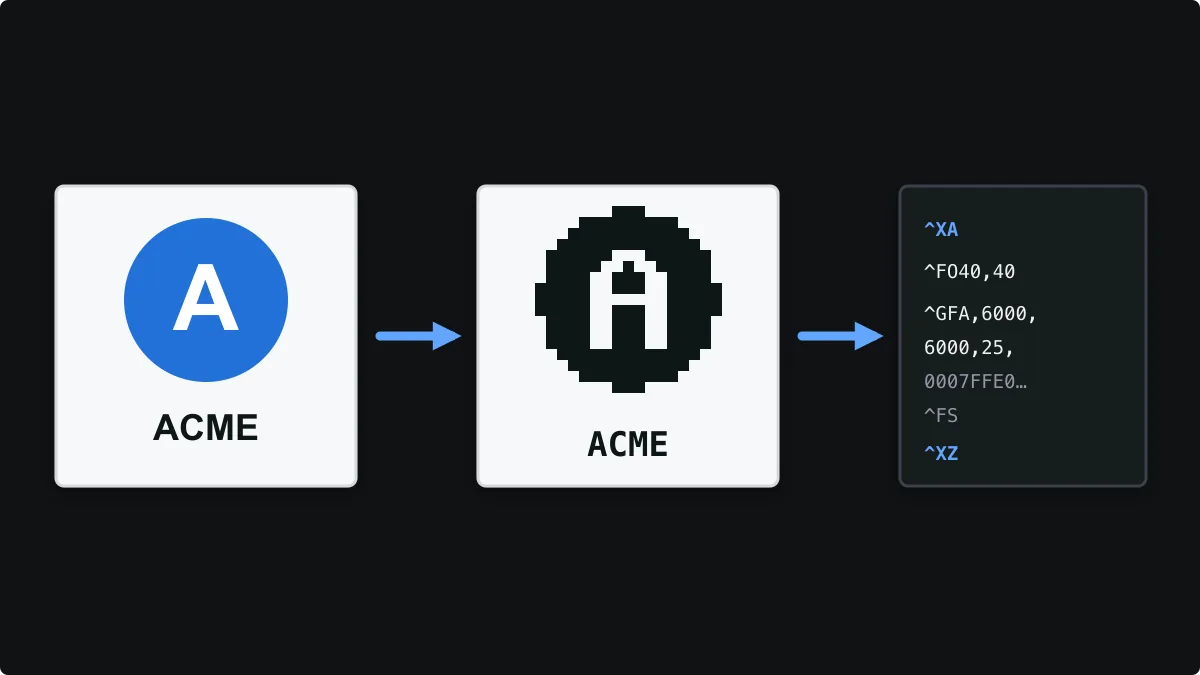
Thermal printers print black dots and nothing else, so a logo or picture has to become a black-and-white bitmap before it can go on a label. In ZPL that bitmap travels inside the label as a graphic field: the ^GF command followed by the image data.
This guide explains how ^GF works, how to add a logo in the ZPLCraft designer, why threshold and dithering give such different results, and how to convert a whole PDF or image to ZPL.
How ZPL stores images: ^GF
^GF takes four parameters before the data: the compression type (A for ASCII hexadecimal, B for binary, C for compressed binary), the number of data bytes, the total number of bytes in the graphic, and the number of bytes in each row. Each byte holds eight dots, so a 200-dot-wide logo needs 25 bytes per row.
^GFa,b,c,d,data^XA
^FO40,40^GFA,24,24,3,FFFFFF8000018FFFF18FFFF18FFFF18FFFF1800001FFFFFF^FS
^XZBecause every dot is stored, images make ZPL files much larger than text and barcodes. Compressed data, including the Z64 format some systems produce, keeps the file smaller. If the same logo prints thousands of times, it can be stored in printer memory once with ~DG and recalled on each label with ^XG, so only a short command travels with every label.
~DGR:LOGO.GRF,6000,25,<data>
^XA
^FO40,40^XGR:LOGO.GRF,1,1^FS
^XZ
Adding a logo in the designer
Choose Image in the Add Elements panel and select a PNG, JPEG or WebP image. The designer converts it to a printer bitmap and places it on the canvas, where you can move and resize it like any other element. It is exported as a ready-encoded ^GF field.
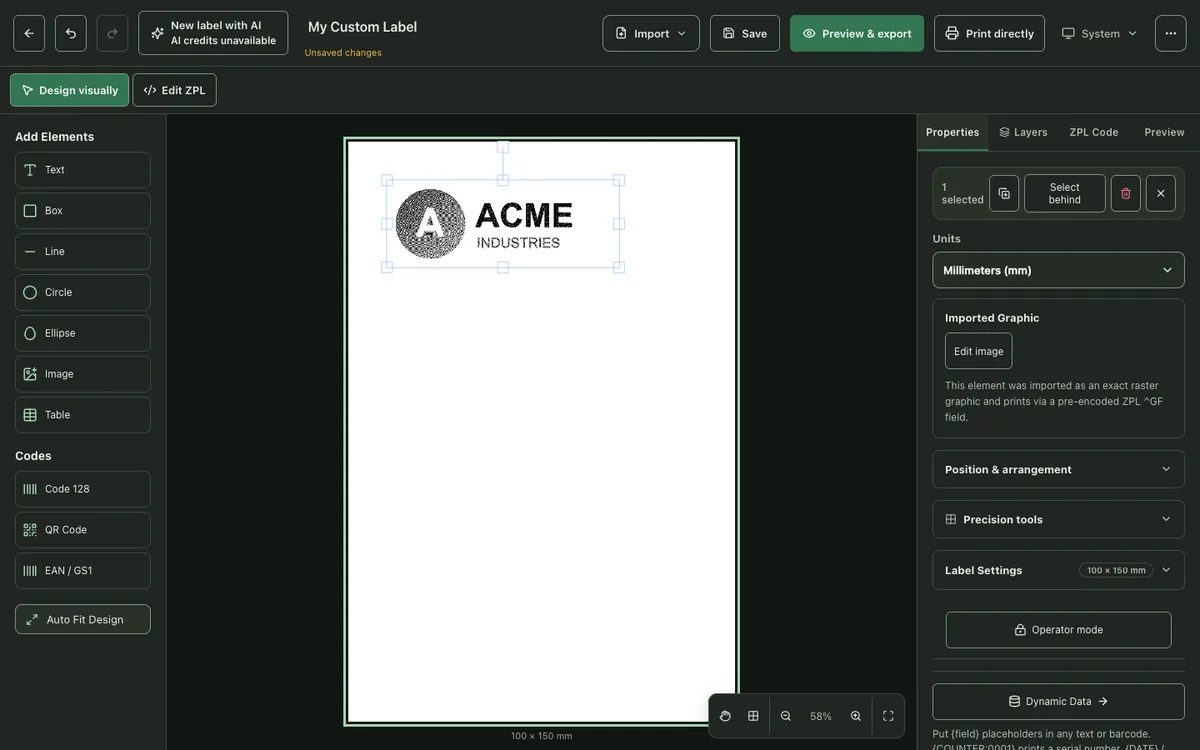
Edit image opens the conversion settings: crop, rotation, contrast, a black-and-white threshold, invert, removal of near-white backgrounds, the output size in pixels and the resampling method. Changes only reach the label when you apply them, so you can experiment freely.
Threshold or dithering?
There are two ways to turn shades of colour into black and white dots, and choosing the wrong one is the most common reason logos print badly.
- Threshold makes every pixel darker than a cut-off black and everything else white. It gives crisp edges for flat logos, text and line art, but gradients and photos collapse into solid areas, as the example below shows with a blue gradient circle.
- Dithering spreads black dots in patterns so that grey tones appear as lighter or darker areas. It suits photos and gradients, but it roughens edges, so never use it for barcodes or small text.
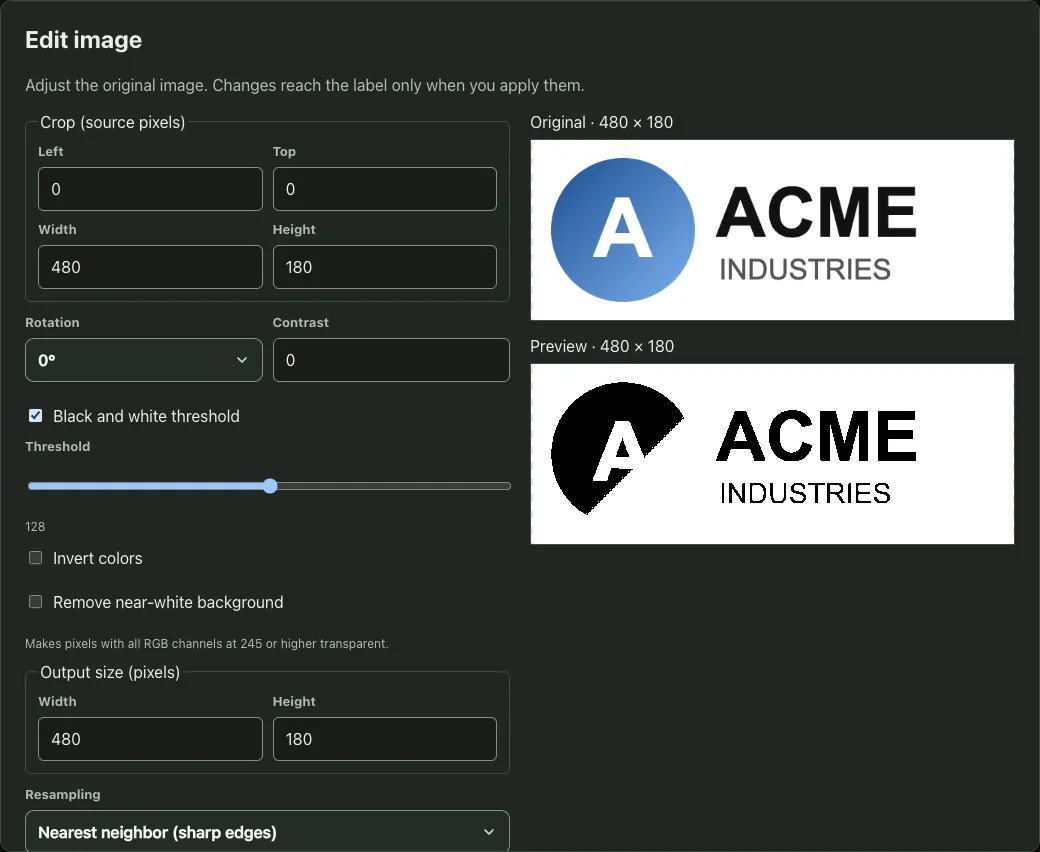
For the best result, start from a logo that is already black and white, or adjust contrast and the threshold level until the important shapes survive.
Getting the size right
Image pixels become printer dots one to one, so the physical size depends on the printer resolution. A logo 25 mm wide needs about 200 dots at 203 dpi and about 300 dots at 300 dpi. Start from an image at least that large: enlarging a small image produces blocky edges, while shrinking a large one is fine.
Converting a whole PDF or image to ZPL
Sometimes the artwork is the whole label, for example a carrier label delivered as a PDF. The PDF & image to ZPL converter turns each selected page or image into a label-sized ^GF graphic. Set the label size and printer resolution, choose Fit inside label or Actual size, and pick threshold for barcodes and text or dithering for photos.
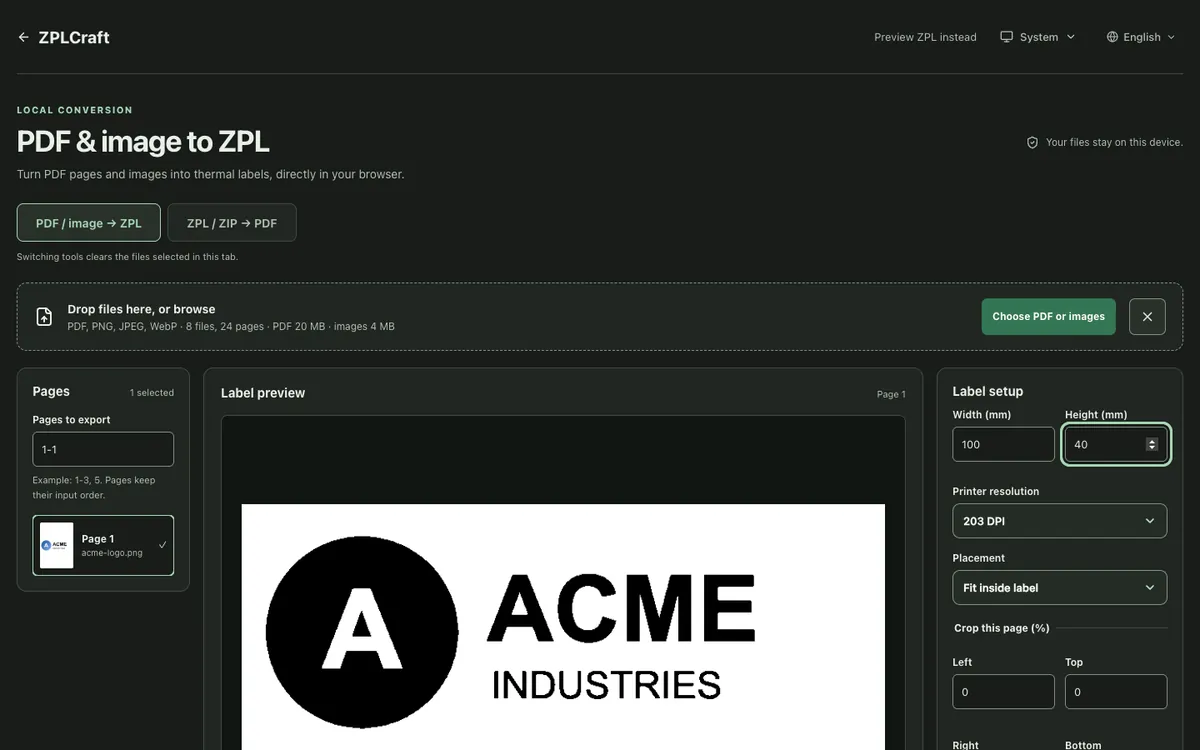
Converted labels are images, so their text and barcodes can no longer be edited. When you need editable fields, rebuild the label in the designer and add only the logo as an image.
Open the PDF & image to ZPL converter
ZPL image questions
Why does my logo print as a black blob?
The threshold is turning mid-tones and gradients into solid black. Raise the threshold, increase contrast, switch to dithering, or start from a black-and-white version of the logo.
Can a Zebra printer print colour or greyscale images?
No. Direct thermal and thermal transfer printers only print dots of one colour, so greys have to be simulated with dithering patterns.
Why is my ZPL file so large after adding an image?
Every dot of the image is stored in the ^GF data. Crop unused space, reduce the image to the size it will print, or store a logo that repeats on every label in printer memory with ~DG.
Which image formats can I use?
The designer and converter accept PNG, JPEG and WebP images, and the converter also accepts PDF pages. Everything is converted to a black-and-white ZPL bitmap in your browser.