Print Labels from Excel or CSV on a Zebra Printer
ZPLCraftUpdated September 30, 2026
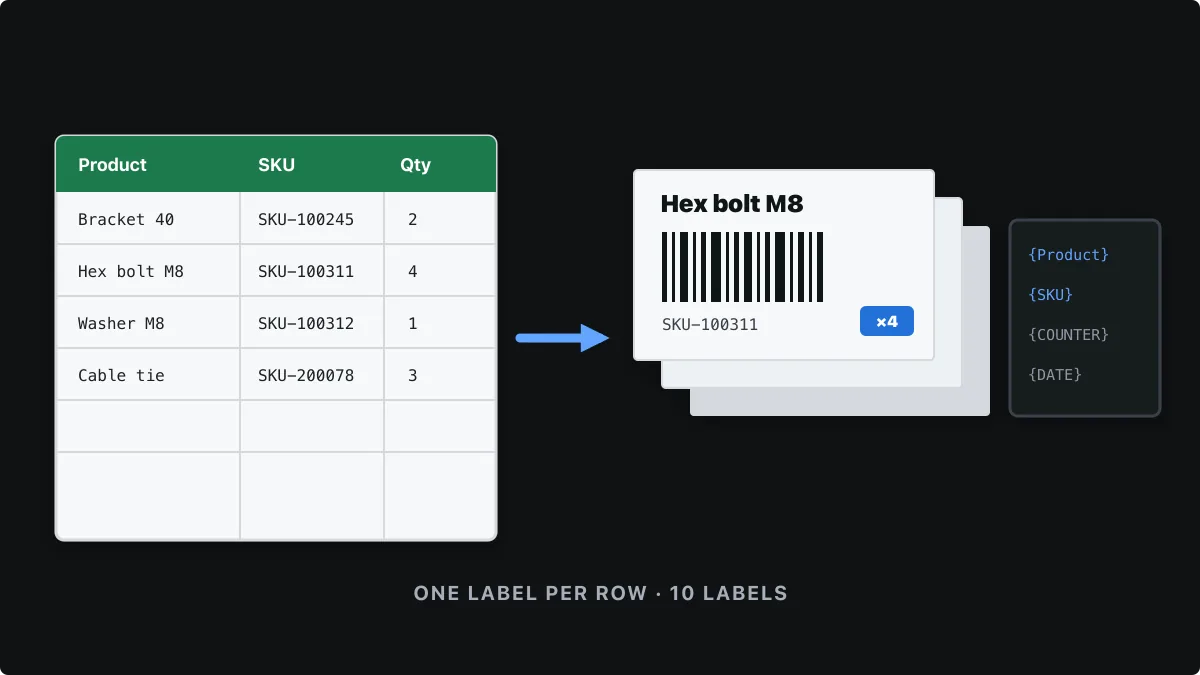
When you need the same label for many products, orders or assets, you should not design each one by hand. Put the data in a spreadsheet, design the label once with placeholders, and let each row become one label. It is the thermal-label version of a mail merge.
This tutorial shows the whole workflow in ZPLCraft, from preparing the spreadsheet to printing or exporting the finished batch. Batch printing from CSV, Excel and Google Sheets is part of Pro.
Step 1: Prepare the spreadsheet
Put column names in the first row and one label per row below it. Short, clear headers such as Product, SKU and Bin make the placeholders easy to read. If some labels need several copies, add a Quantity column.
Product,SKU,Bin,Quantity
Steel bracket 40 mm,SKU-100245,A-01-3,2
Hex bolt M8 x 30,SKU-100311,A-02-1,4
Washer M8 zinc,SKU-100312,A-02-2,1
Cable tie 200 mm,SKU-200078,B-04-6,3Save or export the sheet as .xlsx, .xls or .csv, or keep it in Google Sheets and paste the link. A batch can contain up to 2,000 data rows. In Excel, format columns that hold codes as text so leading zeros are not removed.
Step 2: Design the label with placeholders
Create the label as usual, but wherever a value should change per row, type the column name in curly braces, such as {Product} in a text element or {SKU} as the content of a barcode. The label is rendered once per row with the placeholders replaced.
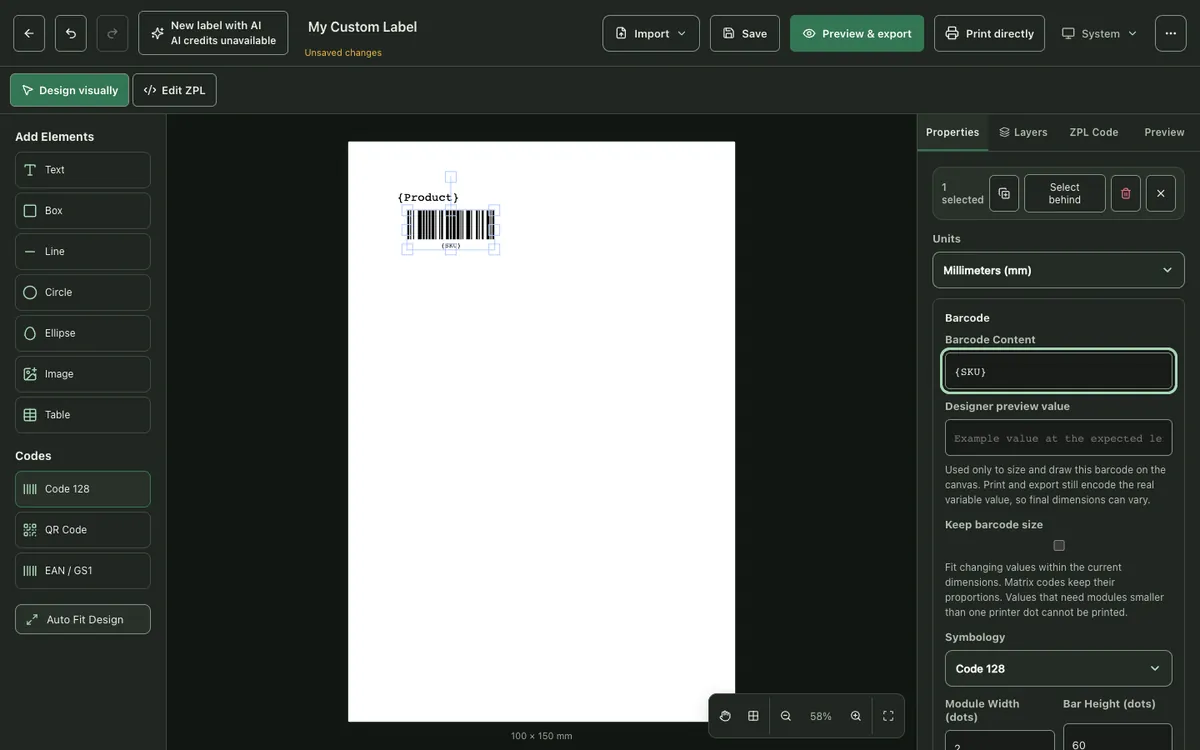
A few placeholders are built in: {COUNTER:0001} prints a running serial number, and {DATE} and {TIME} print the moment of printing. Any other name that is not a spreadsheet column is asked for at print time.
Step 3: Import the data
Open Dynamic Data in the Properties panel and choose a CSV or Excel file, a Google Sheets link or a web link. If a workbook has several sheets, pick the one to use. The Prepare labels from data window lists the columns; click a column to insert it as a placeholder in the selected element.
Step 4: Filter, sort and set quantities
The batch workbench decides which rows become labels and how many of each. Filter by a column value, sort by a column, and choose a Quantity column: each row prints that many copies, and a quantity of zero skips the row. Tick or untick individual rows to fine-tune the selection.
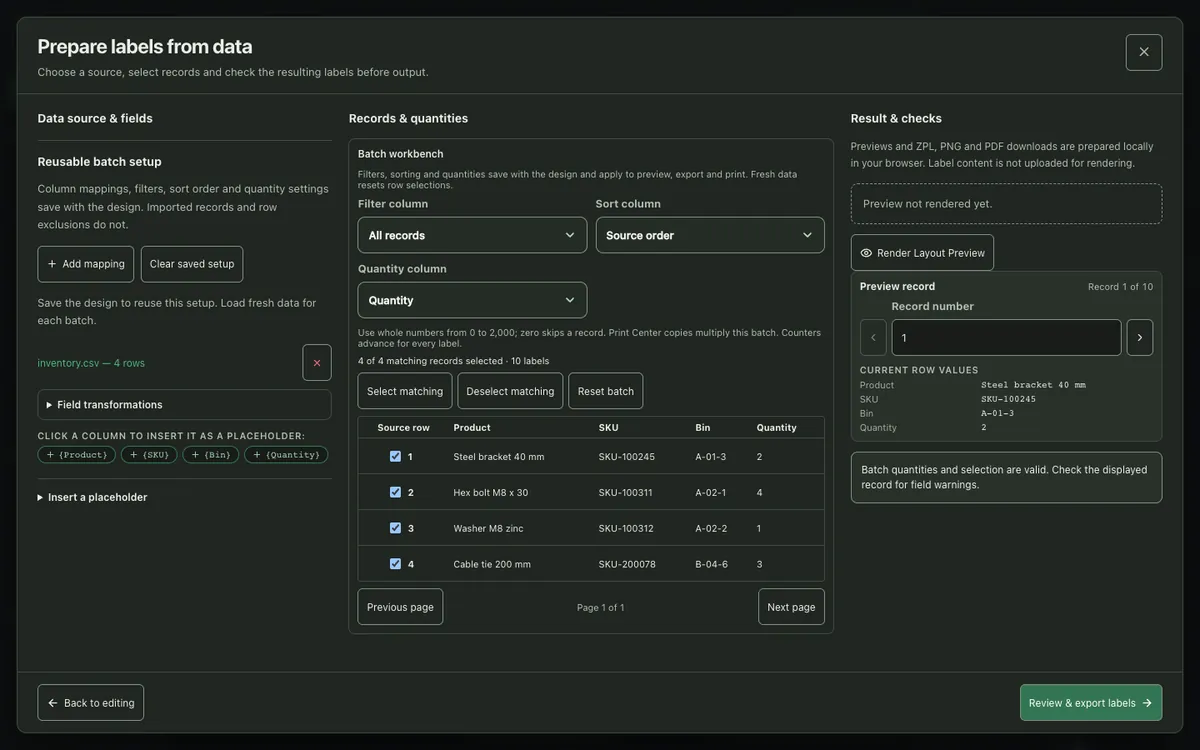
Mappings, filters, sort order and quantity settings are saved with the design, so next time you only load fresh data. The imported records themselves are not saved with the design.
Step 5: Check records before printing
Use Preview record to step through the rows and see the label with each row’s values. Look for values that are longer than the space available, such as long product names or barcodes that grow with their content. Keep barcode size and field transformations help keep variable data within the layout.
Step 6: Print or export the batch
Choose Review & export labels. You can send the batch to your printer or download one ZPL file that contains a separate ^XA … ^XZ block for every label, ready for any system that sends ZPL to Zebra printers. Previews and exports are prepared locally in your browser.
Tips for clean batches
- Test with a few rows first. Filter the sheet down to three or four rows, print them, and scan the barcodes before running the full batch.
- Watch the longest values. Sort by the longest text column and preview the first record to check that it fits.
- Keep IDs as text. Numbers such as 00123 or 12-digit GTINs can be changed by Excel if the column is formatted as a number.
- Use UTF-8 for CSV files. Save CSV files as UTF-8 so accented and non-Latin characters come through correctly.
Batch printing questions
Can I print labels from Excel to a Zebra printer without a driver template?
Yes. Import the Excel file, map the columns to placeholders on the label and print the batch. ZPLCraft generates the ZPL for every row, so no Zebra driver template is needed.
How many labels can I print in one batch?
A batch can contain up to 2,000 data rows, and each row can print up to 2,000 copies through its quantity column.
Is my spreadsheet uploaded?
CSV and Excel files are read in your browser, and labels are previewed and exported locally. Imported records are not saved with your design.
Can a barcode change for each row?
Yes. Put a placeholder such as {SKU} in the barcode content and every label gets the barcode for its own row. Turn on Keep barcode size if the values have different lengths.